
Mobile Wallets
There is a new fast, simple way to pay in stores! When enrolled in Google Play, Apple Pay, and Samsung, you can now easily make secure payments. Enjoy the confidence of paying with your phone!
Choose from the following options:
Apple Pay

Pay with your Visa using Apple Pay
Now you can enjoy all the benefits of your Visa with Apple Pay on iPhone,® Apple Watch,™ and iPad.®
Using Apple Pay is simple
Paying in stores or within apps has never been easier, safer, or more private.
Paying is secure
Your card information is secure because it isn’t stored on your device or shared when you pay.
Set up is simple
To add your card to Apple Pay:
- On iPhone,® open the Wallet app and tap the plus sign. From there, follow the onscreen instructions.
- On Apple Watch,™ open the Apple Watch app on your iPhone and select “Wallet & Apple Pay,” then tap “Add Credit or Debit Card.” From there, follow the onscreen instructions.
- On iPad,® go into Settings, open “Wallet & Apple Pay,” and select “Add Credit or Debit Card.” From there, follow the onscreen instructions.
Paying is easy and secure
To pay within stores, hold iPhone near the contactless reader with your finger on Touch ID.™ On Apple Watch, just double-click the side button and hold the display of your Apple Watch up to the contactless reader. To pay within apps on iPhone and iPad, select Apple Pay as the payment method and place your finger on Touch ID.
Accepted at merchants where you see both of these icons: 
Go to Apple Pay to download the app today.
*Apple Pay works with iPhone 6 and later and Apple Watch in stores, and iPhone 6 and later, iPad Pro, iPad Air 2, and iPad mini 3 and later within apps. For a list of compatible Apple Pay devices, see www.apple.com/apple-pay
Visa card + Google Pay™

Confidence. Simplicity. And the things you love about your Family Credit Union Visa card.
Getting started is as easy as:
- Download the Google Pay app
- Add your Family Credit Union Visa® card – it’s as simple as snapping a photo
- Pay confidently at millions of places around the world.
Use it today
There’s a lot to love about Google Pay. Like how it lets you use your favorite Visa card at millions of places around the world. See stores and apps that accept Google Pay pay.google.com/about
Get extra layers of security
When you use your phone to pay in stores with an eligible Visa card enrolled in Google Pay, Google Pay doesn’t send your actual credit or debit card number with your payment. Instead, a virtual account number is used to represent your account information – so your account details stay safe.
Go to Google Pay to download the app today.
Enjoy the confidence of paying with your phone using Visa and Google Play.
Samsung Pay
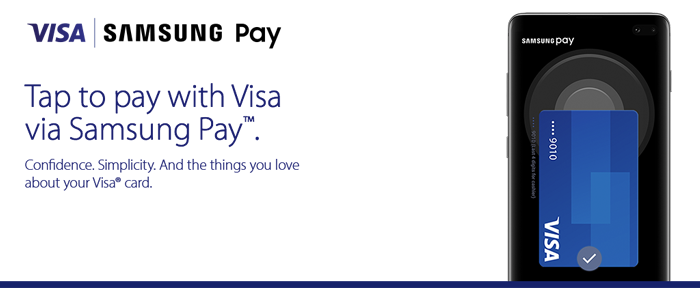
Getting started is as easy as:
- Access your Cards from the Samsung Pay app
- Add your Visa® card
- Look for the Contactless Symbol at checkout
Use it today
There’s a lot to love about Samsung Pay. Like how it lets you use your favorite Visa® card at millions of places around the world. See stores and apps that accept Samsung Pay. www.samsung.com/us/samsung-pay/
Get extra layers of security
When you use your Samsung phone to pay in stores with an eligible Visa card enrolled in Samsung Pay, Visa Token Service replaces sensitive account information with a unique digital identifier called a token, which allows payments to be processed without exposing actual account details.
Go to Samsung Pay to download the app today.
Pay confidently at millions of places around the world with Visa and Samsung Pay.